Software for Cyber Caf�s, Hotspot and Internet Caf�s
 |
Program for the complete management of Windows and Linux navigation workstations in Cyber Caf�s, Hotspot (Lan 2,RADIUS), Call Shop, Internet Caf�s Hotels, Lottery Agencies, Libraries and Betting Agencies. Available in six languages : English, French, Spanish, German, Portuguese, Italian |
 
|
|
|
||
 Simple

Softvision Explorer software can completely manage
Cyber Caf�, Hotspot (Lan2, RADIUS) and Call Shop. The process is composed of
five
modules: Explorer Server, Explorer Manager, Explorer Client, Explorer Printer Monitor
and Explorer Coins.
The manager and the server are installed on a server workstation (main) while Explorer
Client (only for Cyber Caf� usage) must be installed on navigation workstations. The module
Explorer Printer Monitor is used to detect the print-outs made by the
user and should be installed on computers connected to USB printers only
if they do not already execute Explorer Manager or Explorer Client.
Lastly, module Explorer Coins allows you to create a
recharge workstation using an electronic coin acceptor.
Remember that if being used as a Hotspot or Call Shop, the only module
to install is Explorer Manager.
Keep in mind that, for use as a
Hotspot or
Call Shop it is only
necessary to install the Server and Manager modules.
Our hotspot wi-fi management software is also available in a cloud version at www.mywifiservice.com
The VoIP functionalities of Softvision Explorer allow connection to the
hardware and software type SIP telephones system. Thanks to VoIP
technology you can also make calls at considerably lower costs compared
to those of normal telephone operators.
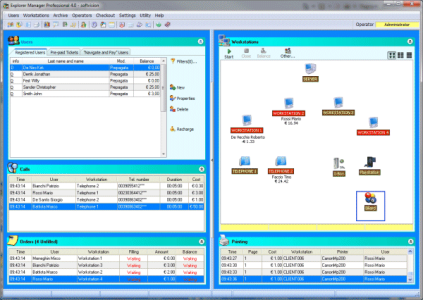
The main screen is divided into four sections and provides access to all the programs principal functions:
- Users: this section displays the list of customers in the archive and several buttons for creating or modifying a user or recharging his credit.
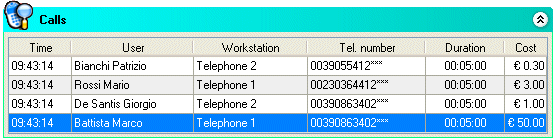
- Calls : it displays all the calls made during the day. Various information is shown for each call : the customer who made the call, the telephone number called, the workstation and the cost of the call.
- Workstations: the right side of the window lists the workstations and their status.
- Orders: monitors the status of customer orders. The title bar of this section displays the number of unfilled orders (in parentheses).
- Printing : this area lists the printouts made during the day.
|
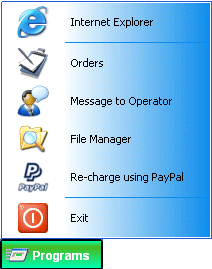
The right side of this bar displays connection information, such as: connection time, credit used, residual credit and username connected. |

Softvision Explorer is able to transform your location
into a Hotspot which conforms completely to the
anti-terrorism laws. Your customers can connect directly
to the internet using their laptops (Windows, Linux, Mac
OS X, etc.), PDA, mobile phones and any kind of device
which has a wireless network card and a browser.
Wireless connections take place through an open Access
Point (wireless router). There is therefore no
protection (WEP etc.) to make the wireless networks
secure. The server on which Explorer Manager is
installed has the task of only allowing connections made
by users who have a username and password.
Softvision Explorer supports two different types of Hotspots :
-
Hotspot on LAN 2 : this type of Hotspot is based on one or more wireless Access Point connected, possibly through a switch, to a second network card (LAN 2) on the server.
-
RADIUS Hotspot : uses wireless systems that communicate with Softvision Explorer using the RADIUS protocol. It is possible to use any wireless router that supports DD-WRT and CoovaAP firmware (Linksys 54GL, Netgear Wrg614 etc.) or any other system that supports the RADIUS certification (Mikrotik etc.) .
Now let us see which operations a user needs to carry
out to connect to a Hotspot. When customers are within
range of an Access Point at your location, their
computers are automatically able to find the wireless
network and connect to it. For this to be successful,
the customer�s wireless network card must be set up to
obtain the IP address and DNS server automatically.
Now the customer should open a page on the browser and
will be automatically re-directed to the page
http://192.168.1.2/login.htm which looks like this :

After entering the access credentials, the customer will
be connected to the internet and can freely use any
application that uses the network (browser, e-mail, chat
etc..)
Using Voice Over IP instead of normal telephone lines offers considerable advantages :
- Saving on the cost of telephone lines :
there's no need to install particular telephone
lines to open a VoIP Call Shop. All the calls are
routed via internet, therefore you only need a good
quality ADSL line.
- Saving on the cost of calls : the cost of
a VoIP call is generally much lower than those made
using a traditional telephone line. Furthermore,
there is an additional saving as the program can
route the calls using carriers with the lowest rate
for the particular prefix called by the user (least
cost routing).
- System expansion: to add new telephone
settings you only have to connect other telephones
to your network.
Creating a Call Shop using Softvision Explorer is really
easy : you only have to connect the SIP telephones to
your local network, configure Explorer Manager with one
or more provider VoIP accounts (carrier) and you can
start accepting calls immediately in your premises.
Softvision srl - Via Cesare Battisti, 101 - 67051 Avezzano (AQ) ITALY - P.IVA 01564100665 | Privacy Policy - Cookie Policy