Configuration
with a Wireless Router is slightly more complicated than with an Access
Point. First of all you must select the “Wireless Router” option in
the Wireless Devices section of the Preferences
function. Now you must specify the Wireless Router’s WAN and LAN IP addresses.
These have the default values of 192.168.2.1 (WAN) and 192.168.1.1 (LAN).
Now let us see how to configure the various network components :
Wireless Router
The Wireless Router’s configuration should be static (Static IP), as follows :
- IP Address : 192.168.2.1
- Subnet mask : 255.255.255.0
- Gateway : 192.168.2.2 (address of the network card for the server connected to LAN 2)
- DNS : address of DNS servers of your own internet provider
Whereas for the router address (network set-up), the settings should be as follows :
- IP Address: 192.168.1.1
- Subnet mask : 255.255.255.0
- DHCP Servers : active with addresses starting from 192.168.1.3
You must also disable any Firewalls, deactivate the
address NAT or set up the device as a Router and not as a Gateway
For example,
let us look at the LinkSys 54G Wireless Router (with Softvision factory
settings) :
To access the router connect to page 192.168.1.1 using a browser.
Access must be made from a computer with a network card configured to obtain
the IP automatically, or with an address of the type 192.168.1.X. The
computer must be connected to one of the 4 ports of the LinkSys switch,
or through Wi-Fi. (so configuration cannot be done from the server).
On access the router will ask for a username and password : leave the username
blank and enter the password “admin”.
The Basic Setup screen will appear. The following values should then be
entered :
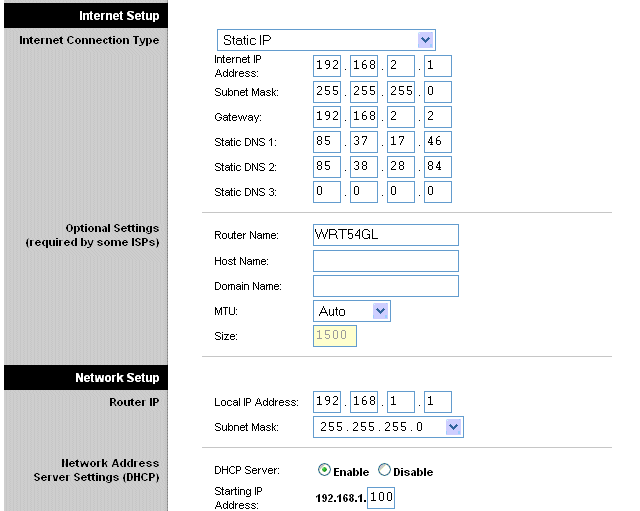
Clearly in place of the DNS’s
which appeared on the preceding screen, you should enter those of your
provider.
To set up the device as a router, you should access the Advanced Routing
page and set “Operating Mode” to “Router”.
Lastly, if you wish, you can change the name of the Wireless Router. (for
example, to “Name of Business Hotspot”). This setting can be made with
the option Wireless Network Name (SSID) in the Wireless section.
Server network cards
The configuration of the first network card (which
is connected to the modem) is identical to the case of the Access Point, while the network card
connected to LAN 2 should be set up as follows :
- IP Address : 192.168.2.2
- Subnet mask : 255.255.255.0
- Pre-defined Gateway : no value
As regards the configuration of the modem router connected to LAN 1, the same settings can be used as for the Access Point.
Softvision srl - Via Cesare Battisti, 101 - 67051 Avezzano (AQ) ITALY - P.IVA 01564100665 | Privacy Policy - Cookie Policy