This
part of the main window
is divided up according to the three types of user supported by the software:
Registered Users, Pre-paid Tickets, “Navigate and Pay” Users.
Let us examine the three screens in detail :
Registered Users
This section displays a list of customer names, organised into groups, in the archive together with their balance and their navigation mode (pre-paid, post-paid, time based, etc.). The values in the Balance column are displayed in red when the customer has a negative balance. This normally occurs for customers navigating in post-paid mode.
The left of each user includes a small notification area ("Info" column) inside which symbols are displayed that highlight certain critical data on the user record.
The symbols displayed are :
D : this means the document images have not yet been acquired for the user.
N : the user record contains notes.
X : indicates the user has been disabled.
By moving the mouse over these symbols, a small strip will appear containing further information on the notification.
In the upper part of this section there are two search boxes. These reveal themselves very useful for quickly locating a customer, simply by inserting the first characters of the person’s first name and surname.
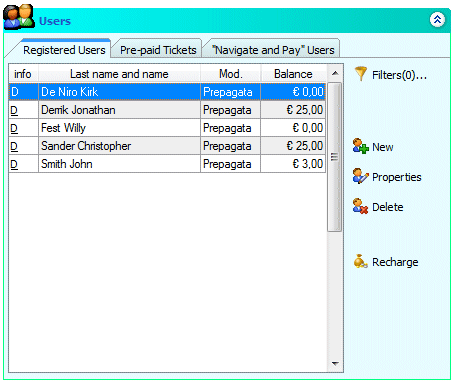
To enter a new customer in the archive, simply click on "New", while to change a user's data click the "Properties" button. In both cases, the customer record appears to allow you to enter or change all the user's data.
Using the "Filters..." button, you can specify the characteristics of the users to be displayed in order to quickly locate a determined user.
Lastly, by using the "Recharge" button ("Balance" for post-paid sessions), you access a window that will allow you to recharge an account or the balance of a session, based on the navigation mode used by the customer.
Pre-paid Tickets
In this section the pre-paid tickets generated are
shown using the “Generate Pre-paid tickets” option. For each ticket the
8-digit code number, amount, expiry date (if any) and the activation
status (sold or unsold) are shown.
On the right of this list you will find buttons you can use to eliminate
a ticket, the options : ticket elimination, eliminate all expired
tickets, change the amount, set the ticket status to Sold and generate
new tickets.
"Navigate and Pay" Users
“Navigate and Pay” users are useful whenever you want to let a new customer navigate, so it is unregistered and post-paid. You just click on the New button to open a window in which you must specify which workstation to start up, the customer’s name and the type of access you want to give (payment plan, user group etc.). After clicking on the “Start” button, the chosen workstation will be started up automatically and the user can then use the workstation for navigating. At the end of the session, the customer’s name will be on the “Navigate and Pay” users list, until the account is paid using the “Pay” button.
Softvision - Via Cesare Battisti, 101 - 67051 Avezzano (AQ) ITALY - P.IVA 02081660660 | Privacy Policy - Cookie Policy